Setting Up Your First Oracle Cloud VM — What Every Small Business and Student Should Know
Oracle Cloud gives you real servers for free, forever. Not a trial. Four ARM cores, 24GB RAM, 200GB storage. Here's how to set one up from scratch — SSH keys, VM specs, and the pitfalls that trip people up the first time.
Tutorials
Most small businesses I talk to are paying for hosting they don't actually need. Thirty, forty, sometimes eighty dollars a month for a shared server that can't do much beyond holding a WordPress site. And then when they want to test something — a new tool, a backend, an AI agent they saw on Twitter — they're scared to touch it because it might break what they're paying for.
Oracle Cloud Free Tier solves a lot of that. Not a 30-day trial. Not a bait-and-switch. Always Free means always free. You get four ARM cores, 24GB of RAM, 200GB of storage, and 10TB of bandwidth a month. That's more than a $50-a-month VPS on most hosts.
I'll be honest with you — I'm still learning this stuff myself. This blog is me sharing what I've figured out so far. If you're a small business owner, a student, or someone who just wants a sandbox to play with tools like OpenCode without messing up your main machine, this is where you start. And if you want to hire me to set one up for you, I'm here. But follow this guide and you can do it yourself.

Oracle Cloud Infrastructure (OCI) is the same cloud platform Oracle uses to serve banks, hospitals, and government systems. That matters because the security posture is a lot closer to what enterprises use than what cheap shared hosting gives you.
Here's what you actually get on the Free Tier, according to Oracle's official docs:
ARM Ampere A1 compute — 4 OCPUs and 24 GB of memory, flexible across up to 2 (or in some configs, 4) instances.
200 GB block storage total, split however you want across your VMs.
10 TB outbound bandwidth per month.
2 AMD micro instances on top of the ARM allocation.
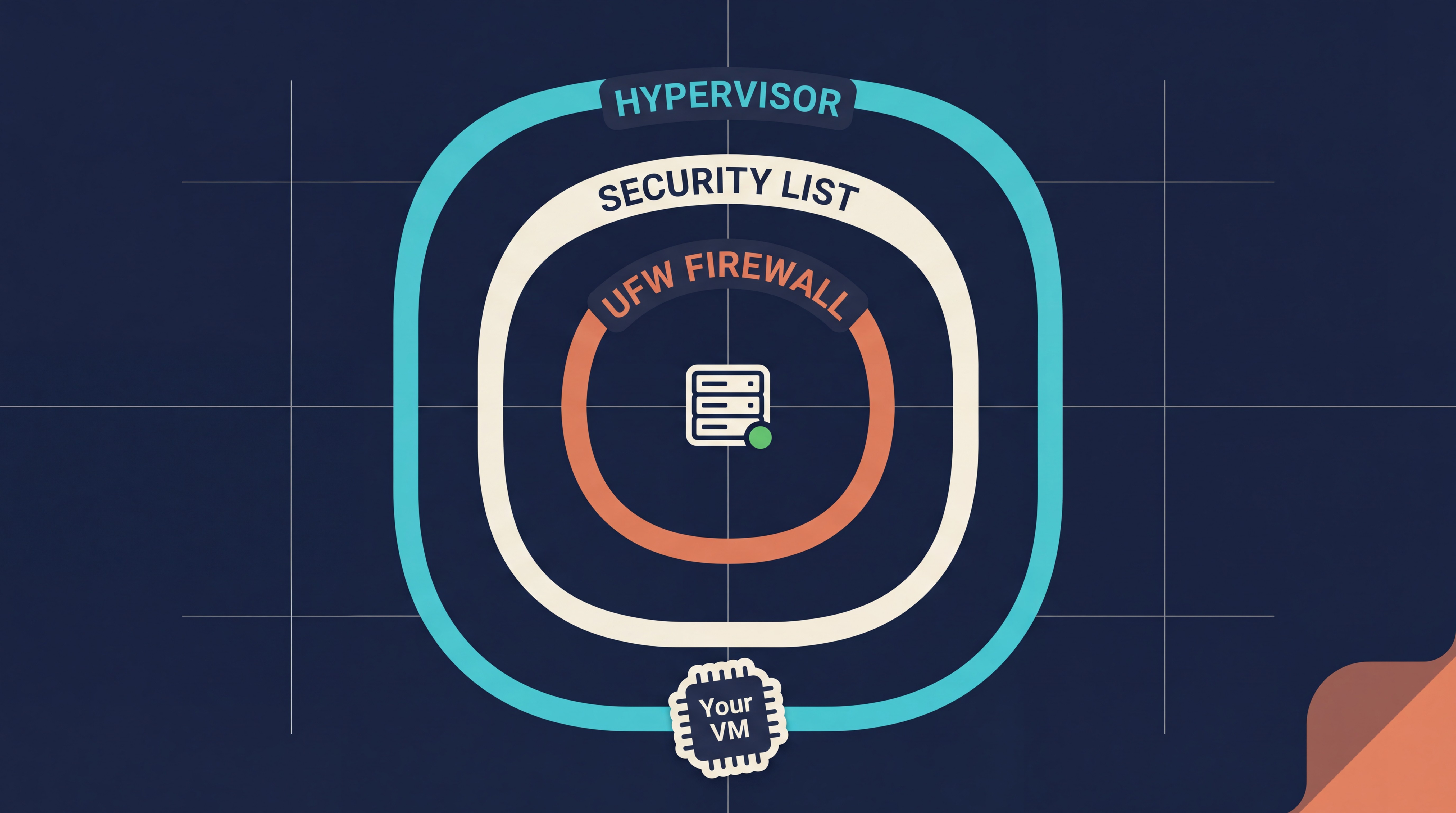
Security-wise, each VM is isolated at the hypervisor level. Access is SSH-only by default — no password login. Oracle's security lists and your instance's firewall give you two layers of control. And because Oracle doesn't store your private SSH key (per their docs), nobody at Oracle can log into your machine even if they wanted to.
That last part is the difference between a real server and a shared hosting panel.
Alright let's get into it. I'm walking you through this the way I wish someone had walked me through it.
Step 1 — Create an Oracle Cloud account.
Go to oracle.com/cloud/free and sign up. They'll ask for a credit card for identity verification. You will not be charged on Always Free resources. Just pay attention in the next step.
Step 2 — Generate your SSH key pair FIRST.
Before you create the instance, make the keys on your own machine. Oracle does not keep a copy of the private key. If you lose it, you lose access permanently.
On Mac or Linux, open Terminal:
ssh-keygen -t ed25519 -C "your@email.com"
ssh-keygen -t ed25519 -C "your@email.com"
ssh-keygen -t ed25519 -C "your@email.com"
On Windows 10 or newer, open PowerShell or Command Prompt (OpenSSH ships with Windows now):
ssh-keygen -t ed25519 -C "your@email.com"
ssh-keygen -t ed25519 -C "your@email.com"
ssh-keygen -t ed25519 -C "your@email.com"
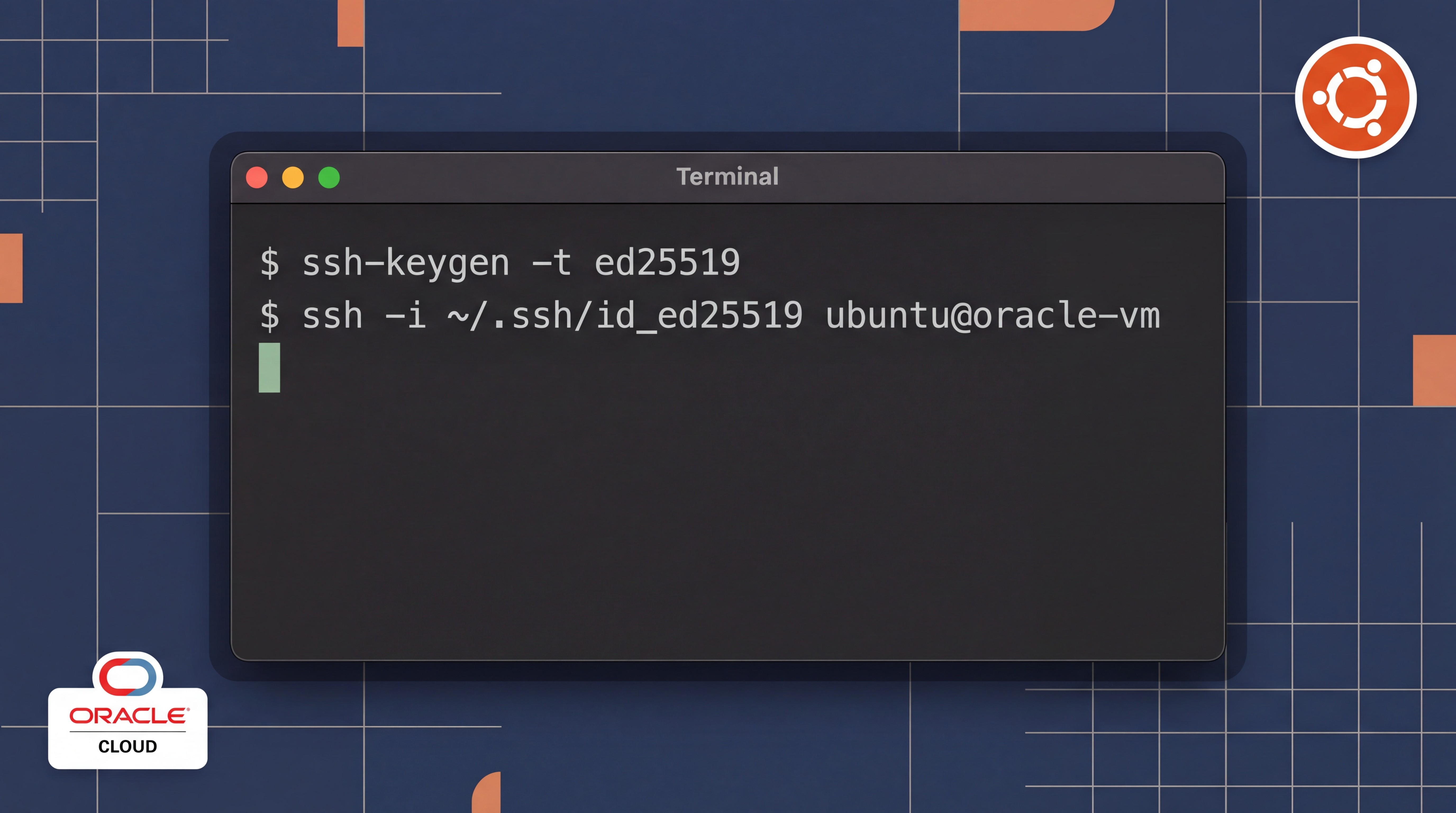
Press enter to accept the default location (~/.ssh/id_ed25519 on Mac, C:\Users\you\.ssh\id_ed25519 on Windows). Set a passphrase if you want extra protection. Two files get created: id_ed25519 (private — keep safe) and id_ed25519.pub (public — this is what you upload to Oracle).
Why Ed25519? It's the modern standard — shorter keys, stronger security, faster handshake than the older RSA 2048.
Step 3 — Create the instance.
In the Oracle Cloud console:
Shape:
VM.Standard.A1.Flex(this is the Always Free ARM shape)OCPUs: start with 1-2, leave room for a second VM if you want
Memory: start with 6-12 GB, same reason
Image: Canonical Ubuntu 24.04 Minimal aarch64 (the aarch64 part matters — it's ARM, not x86)
SSH key: paste the contents of
id_ed25519.pubinto the "Paste SSH keys" fieldNetworking: let Oracle create a VCN for you if you don't have one
Step 4 — SSH into your new server.
Once the instance shows as Running, grab the public IP from the console. Then:
ssh -i ~/.ssh/id_ed25519 ubuntu@<your-public-ip
ssh -i ~/.ssh/id_ed25519 ubuntu@<your-public-ip
ssh -i ~/.ssh/id_ed25519 ubuntu@<your-public-ip
If the command hangs, check your security list — port 22 needs to be open (it is by default, but double-check).
Step 5 — Lock it down on first boot.
Before you install anything else, do this:
sudo apt update && sudo apt upgrade -y
sudo ufw allow ssh
sudo ufw enable
sudo apt update && sudo apt upgrade -y
sudo ufw allow ssh
sudo ufw enable
sudo apt update && sudo apt upgrade -y
sudo ufw allow ssh
sudo ufw enable
That updates your system and turns on the local firewall.
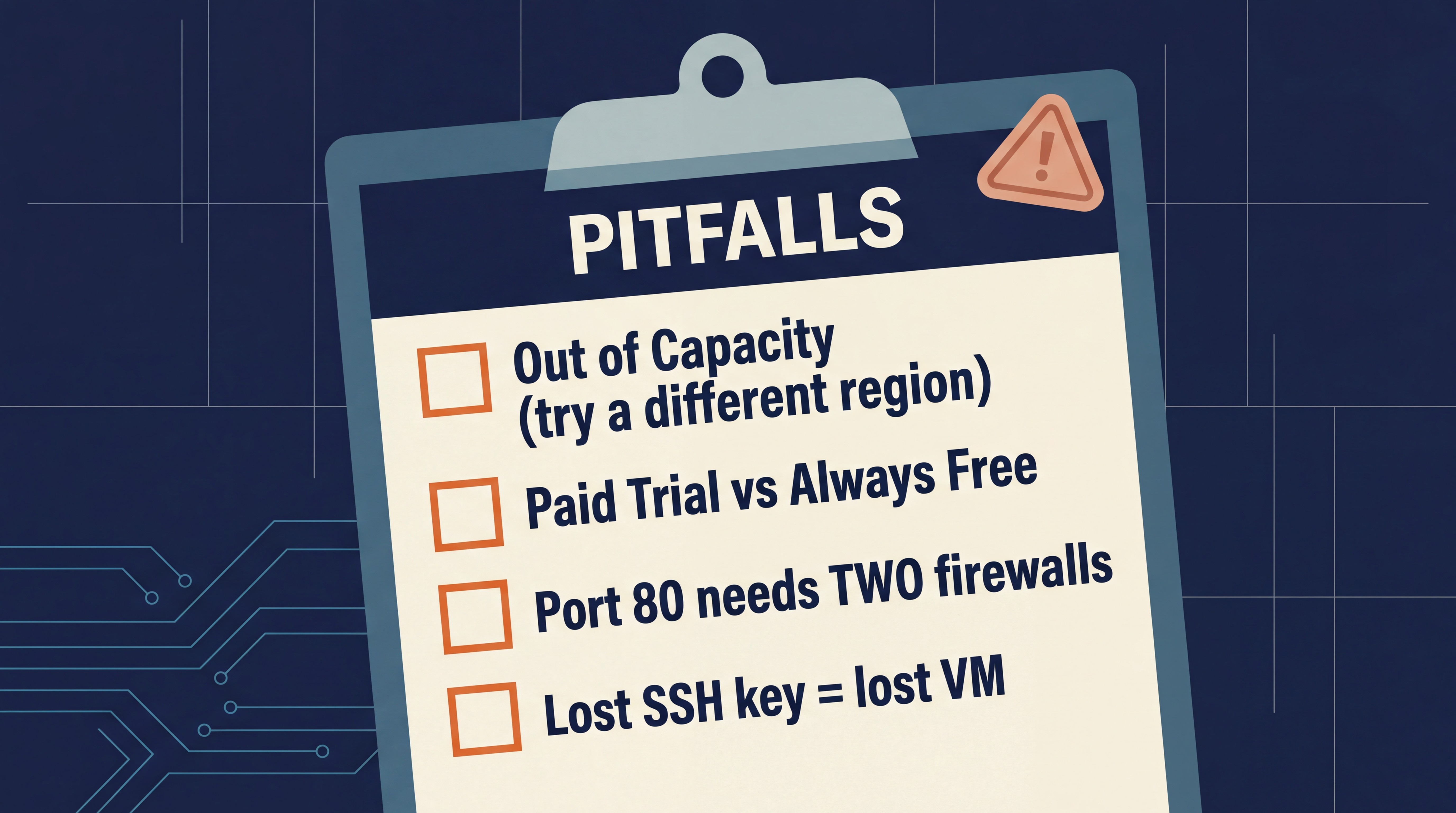
"Out of capacity" errors. Oracle's Always Free ARM shape is popular, and some regions run out of stock. If you get this, try a different region (Phoenix, Frankfurt, and Singapore often have capacity).
Paid Trial vs Always Free confusion. When you sign up, Oracle also gives you $300 of Paid Trial credit for 30 days. Anything you create using shapes that aren't marked "Always Free Eligible" gets billed against that trial. After 30 days, non-Always-Free resources turn off. Stick to shapes with the "Always Free Eligible" label and you will not get charged.
Opening a web port. If you want to host a website or an app, opening port 80 or 443 requires TWO changes. First, edit your VCN's security list to allow ingress. Second, open the port on the instance's firewall: sudo ufw allow 80.
Losing your private key. Back it up. Seriously. Put a copy somewhere encrypted (1Password, a password manager that supports files, or an encrypted USB). If you lose it, Oracle cannot recover it. You'll have to destroy and rebuild the VM.
What You Can Actually Do With This
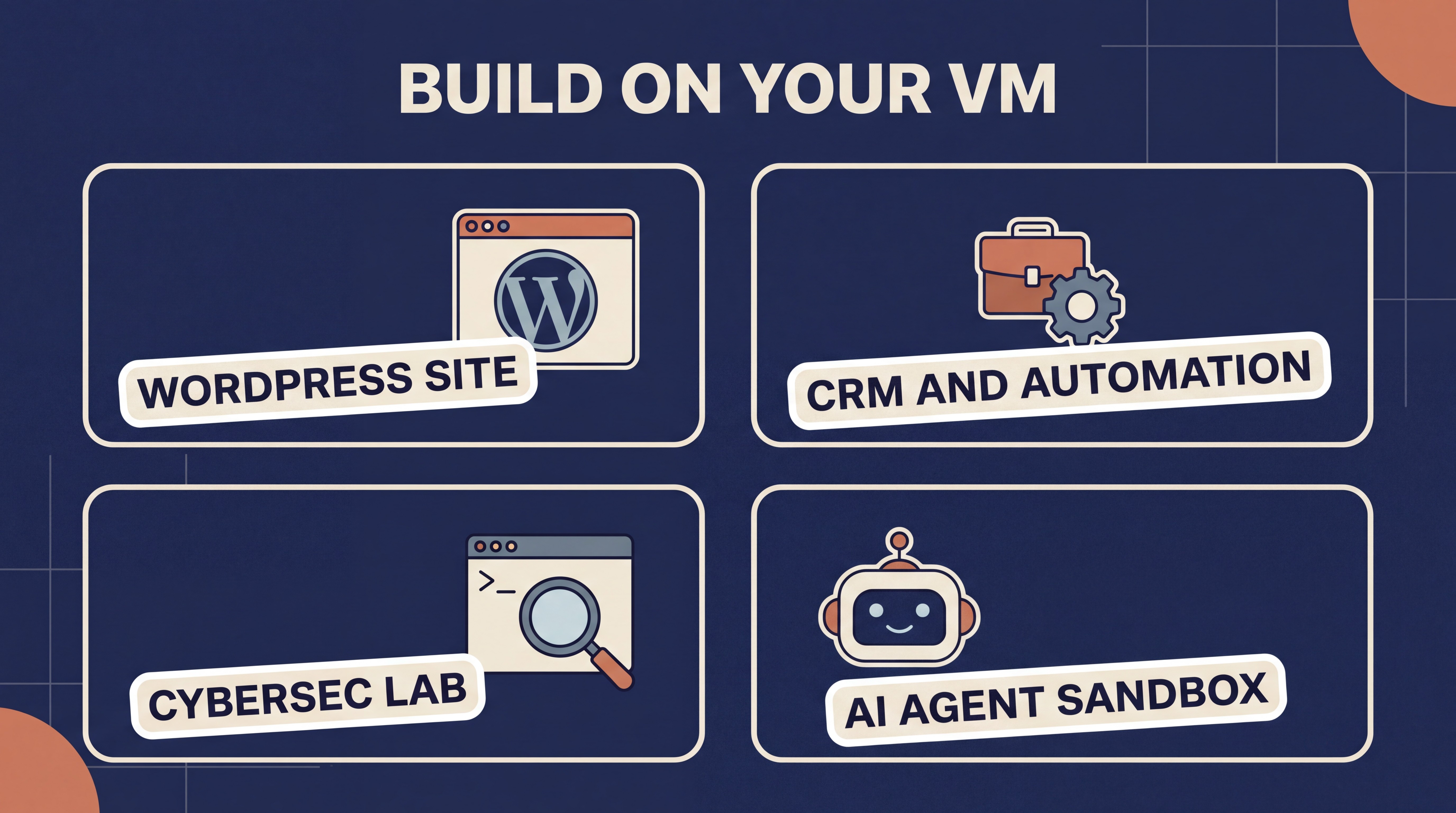
Once you're in, the VM is a full Linux server. You can:
Run a small business site — host your own WordPress or Ghost. No more hosting fees.
Run a backend tracker — email automation, CRM logic, scheduled jobs. Same kind of thing I'm building for clients like Maestro Cabinetry.
Build a cybersecurity lab — this is what I use mine for in my ITSY-2443 class. Practice forensics, test SIEM tools, run isolated analysis.
Run a coding agent sandbox — OpenCode and similar agents work well inside a cloud VM. You keep your main machine clean and give the agent a real environment to work in.
I'm dropping a full YouTube walkthrough on this — every screen, every command, start to finish. Subscribe and study along. If you have questions about your specific setup, drop them in the comments or reach out through the contact form on this site. If you want one done for your business, I'm available.
This content is free. Always will be.
More to Discover


Setting Up Your First Oracle Cloud VM — What Every Small Business and Student Should Know
Oracle Cloud gives you real servers for free, forever. Not a trial. Four ARM cores, 24GB RAM, 200GB storage. Here's how to set one up from scratch — SSH keys, VM specs, and the pitfalls that trip people up the first time.
Tutorials
Most small businesses I talk to are paying for hosting they don't actually need. Thirty, forty, sometimes eighty dollars a month for a shared server that can't do much beyond holding a WordPress site. And then when they want to test something — a new tool, a backend, an AI agent they saw on Twitter — they're scared to touch it because it might break what they're paying for.
Oracle Cloud Free Tier solves a lot of that. Not a 30-day trial. Not a bait-and-switch. Always Free means always free. You get four ARM cores, 24GB of RAM, 200GB of storage, and 10TB of bandwidth a month. That's more than a $50-a-month VPS on most hosts.
I'll be honest with you — I'm still learning this stuff myself. This blog is me sharing what I've figured out so far. If you're a small business owner, a student, or someone who just wants a sandbox to play with tools like OpenCode without messing up your main machine, this is where you start. And if you want to hire me to set one up for you, I'm here. But follow this guide and you can do it yourself.
Oracle Cloud Infrastructure (OCI) is the same cloud platform Oracle uses to serve banks, hospitals, and government systems. That matters because the security posture is a lot closer to what enterprises use than what cheap shared hosting gives you.
Here's what you actually get on the Free Tier, according to Oracle's official docs:
ARM Ampere A1 compute — 4 OCPUs and 24 GB of memory, flexible across up to 2 (or in some configs, 4) instances.
200 GB block storage total, split however you want across your VMs.
10 TB outbound bandwidth per month.
2 AMD micro instances on top of the ARM allocation.
Security-wise, each VM is isolated at the hypervisor level. Access is SSH-only by default — no password login. Oracle's security lists and your instance's firewall give you two layers of control. And because Oracle doesn't store your private SSH key (per their docs), nobody at Oracle can log into your machine even if they wanted to.
That last part is the difference between a real server and a shared hosting panel.
Alright let's get into it. I'm walking you through this the way I wish someone had walked me through it.
Step 1 — Create an Oracle Cloud account.
Go to oracle.com/cloud/free and sign up. They'll ask for a credit card for identity verification. You will not be charged on Always Free resources. Just pay attention in the next step.
Step 2 — Generate your SSH key pair FIRST.
Before you create the instance, make the keys on your own machine. Oracle does not keep a copy of the private key. If you lose it, you lose access permanently.
On Mac or Linux, open Terminal:
ssh-keygen -t ed25519 -C "your@email.com"
ssh-keygen -t ed25519 -C "your@email.com"
ssh-keygen -t ed25519 -C "your@email.com"
On Windows 10 or newer, open PowerShell or Command Prompt (OpenSSH ships with Windows now):
ssh-keygen -t ed25519 -C "your@email.com"
ssh-keygen -t ed25519 -C "your@email.com"
ssh-keygen -t ed25519 -C "your@email.com"
Press enter to accept the default location (~/.ssh/id_ed25519 on Mac, C:\Users\you\.ssh\id_ed25519 on Windows). Set a passphrase if you want extra protection. Two files get created: id_ed25519 (private — keep safe) and id_ed25519.pub (public — this is what you upload to Oracle).
Why Ed25519? It's the modern standard — shorter keys, stronger security, faster handshake than the older RSA 2048.
Step 3 — Create the instance.
In the Oracle Cloud console:
Shape:
VM.Standard.A1.Flex(this is the Always Free ARM shape)OCPUs: start with 1-2, leave room for a second VM if you want
Memory: start with 6-12 GB, same reason
Image: Canonical Ubuntu 24.04 Minimal aarch64 (the aarch64 part matters — it's ARM, not x86)
SSH key: paste the contents of
id_ed25519.pubinto the "Paste SSH keys" fieldNetworking: let Oracle create a VCN for you if you don't have one
Step 4 — SSH into your new server.
Once the instance shows as Running, grab the public IP from the console. Then:
ssh -i ~/.ssh/id_ed25519 ubuntu@<your-public-ip
ssh -i ~/.ssh/id_ed25519 ubuntu@<your-public-ip
ssh -i ~/.ssh/id_ed25519 ubuntu@<your-public-ip
If the command hangs, check your security list — port 22 needs to be open (it is by default, but double-check).
Step 5 — Lock it down on first boot.
Before you install anything else, do this:
sudo apt update && sudo apt upgrade -y
sudo ufw allow ssh
sudo ufw enable
sudo apt update && sudo apt upgrade -y
sudo ufw allow ssh
sudo ufw enable
sudo apt update && sudo apt upgrade -y
sudo ufw allow ssh
sudo ufw enable
That updates your system and turns on the local firewall.
"Out of capacity" errors. Oracle's Always Free ARM shape is popular, and some regions run out of stock. If you get this, try a different region (Phoenix, Frankfurt, and Singapore often have capacity).
Paid Trial vs Always Free confusion. When you sign up, Oracle also gives you $300 of Paid Trial credit for 30 days. Anything you create using shapes that aren't marked "Always Free Eligible" gets billed against that trial. After 30 days, non-Always-Free resources turn off. Stick to shapes with the "Always Free Eligible" label and you will not get charged.
Opening a web port. If you want to host a website or an app, opening port 80 or 443 requires TWO changes. First, edit your VCN's security list to allow ingress. Second, open the port on the instance's firewall: sudo ufw allow 80.
Losing your private key. Back it up. Seriously. Put a copy somewhere encrypted (1Password, a password manager that supports files, or an encrypted USB). If you lose it, Oracle cannot recover it. You'll have to destroy and rebuild the VM.
What You Can Actually Do With This
Once you're in, the VM is a full Linux server. You can:
Run a small business site — host your own WordPress or Ghost. No more hosting fees.
Run a backend tracker — email automation, CRM logic, scheduled jobs. Same kind of thing I'm building for clients like Maestro Cabinetry.
Build a cybersecurity lab — this is what I use mine for in my ITSY-2443 class. Practice forensics, test SIEM tools, run isolated analysis.
Run a coding agent sandbox — OpenCode and similar agents work well inside a cloud VM. You keep your main machine clean and give the agent a real environment to work in.
I'm dropping a full YouTube walkthrough on this — every screen, every command, start to finish. Subscribe and study along. If you have questions about your specific setup, drop them in the comments or reach out through the contact form on this site. If you want one done for your business, I'm available.
This content is free. Always will be.
More to Discover
Setting Up Your First Oracle Cloud VM — What Every Small Business and Student Should Know
Oracle Cloud gives you real servers for free, forever. Not a trial. Four ARM cores, 24GB RAM, 200GB storage. Here's how to set one up from scratch — SSH keys, VM specs, and the pitfalls that trip people up the first time.
Tutorials
Most small businesses I talk to are paying for hosting they don't actually need. Thirty, forty, sometimes eighty dollars a month for a shared server that can't do much beyond holding a WordPress site. And then when they want to test something — a new tool, a backend, an AI agent they saw on Twitter — they're scared to touch it because it might break what they're paying for.
Oracle Cloud Free Tier solves a lot of that. Not a 30-day trial. Not a bait-and-switch. Always Free means always free. You get four ARM cores, 24GB of RAM, 200GB of storage, and 10TB of bandwidth a month. That's more than a $50-a-month VPS on most hosts.
I'll be honest with you — I'm still learning this stuff myself. This blog is me sharing what I've figured out so far. If you're a small business owner, a student, or someone who just wants a sandbox to play with tools like OpenCode without messing up your main machine, this is where you start. And if you want to hire me to set one up for you, I'm here. But follow this guide and you can do it yourself.
Oracle Cloud Infrastructure (OCI) is the same cloud platform Oracle uses to serve banks, hospitals, and government systems. That matters because the security posture is a lot closer to what enterprises use than what cheap shared hosting gives you.
Here's what you actually get on the Free Tier, according to Oracle's official docs:
ARM Ampere A1 compute — 4 OCPUs and 24 GB of memory, flexible across up to 2 (or in some configs, 4) instances.
200 GB block storage total, split however you want across your VMs.
10 TB outbound bandwidth per month.
2 AMD micro instances on top of the ARM allocation.
Security-wise, each VM is isolated at the hypervisor level. Access is SSH-only by default — no password login. Oracle's security lists and your instance's firewall give you two layers of control. And because Oracle doesn't store your private SSH key (per their docs), nobody at Oracle can log into your machine even if they wanted to.
That last part is the difference between a real server and a shared hosting panel.
Alright let's get into it. I'm walking you through this the way I wish someone had walked me through it.
Step 1 — Create an Oracle Cloud account.
Go to oracle.com/cloud/free and sign up. They'll ask for a credit card for identity verification. You will not be charged on Always Free resources. Just pay attention in the next step.
Step 2 — Generate your SSH key pair FIRST.
Before you create the instance, make the keys on your own machine. Oracle does not keep a copy of the private key. If you lose it, you lose access permanently.
On Mac or Linux, open Terminal:
ssh-keygen -t ed25519 -C "your@email.com"
ssh-keygen -t ed25519 -C "your@email.com"
ssh-keygen -t ed25519 -C "your@email.com"
On Windows 10 or newer, open PowerShell or Command Prompt (OpenSSH ships with Windows now):
ssh-keygen -t ed25519 -C "your@email.com"
ssh-keygen -t ed25519 -C "your@email.com"
ssh-keygen -t ed25519 -C "your@email.com"
Press enter to accept the default location (~/.ssh/id_ed25519 on Mac, C:\Users\you\.ssh\id_ed25519 on Windows). Set a passphrase if you want extra protection. Two files get created: id_ed25519 (private — keep safe) and id_ed25519.pub (public — this is what you upload to Oracle).
Why Ed25519? It's the modern standard — shorter keys, stronger security, faster handshake than the older RSA 2048.
Step 3 — Create the instance.
In the Oracle Cloud console:
Shape:
VM.Standard.A1.Flex(this is the Always Free ARM shape)OCPUs: start with 1-2, leave room for a second VM if you want
Memory: start with 6-12 GB, same reason
Image: Canonical Ubuntu 24.04 Minimal aarch64 (the aarch64 part matters — it's ARM, not x86)
SSH key: paste the contents of
id_ed25519.pubinto the "Paste SSH keys" fieldNetworking: let Oracle create a VCN for you if you don't have one
Step 4 — SSH into your new server.
Once the instance shows as Running, grab the public IP from the console. Then:
ssh -i ~/.ssh/id_ed25519 ubuntu@<your-public-ip
ssh -i ~/.ssh/id_ed25519 ubuntu@<your-public-ip
ssh -i ~/.ssh/id_ed25519 ubuntu@<your-public-ip
If the command hangs, check your security list — port 22 needs to be open (it is by default, but double-check).
Step 5 — Lock it down on first boot.
Before you install anything else, do this:
sudo apt update && sudo apt upgrade -y
sudo ufw allow ssh
sudo ufw enable
sudo apt update && sudo apt upgrade -y
sudo ufw allow ssh
sudo ufw enable
sudo apt update && sudo apt upgrade -y
sudo ufw allow ssh
sudo ufw enable
That updates your system and turns on the local firewall.
"Out of capacity" errors. Oracle's Always Free ARM shape is popular, and some regions run out of stock. If you get this, try a different region (Phoenix, Frankfurt, and Singapore often have capacity).
Paid Trial vs Always Free confusion. When you sign up, Oracle also gives you $300 of Paid Trial credit for 30 days. Anything you create using shapes that aren't marked "Always Free Eligible" gets billed against that trial. After 30 days, non-Always-Free resources turn off. Stick to shapes with the "Always Free Eligible" label and you will not get charged.
Opening a web port. If you want to host a website or an app, opening port 80 or 443 requires TWO changes. First, edit your VCN's security list to allow ingress. Second, open the port on the instance's firewall: sudo ufw allow 80.
Losing your private key. Back it up. Seriously. Put a copy somewhere encrypted (1Password, a password manager that supports files, or an encrypted USB). If you lose it, Oracle cannot recover it. You'll have to destroy and rebuild the VM.
What You Can Actually Do With This
Once you're in, the VM is a full Linux server. You can:
Run a small business site — host your own WordPress or Ghost. No more hosting fees.
Run a backend tracker — email automation, CRM logic, scheduled jobs. Same kind of thing I'm building for clients like Maestro Cabinetry.
Build a cybersecurity lab — this is what I use mine for in my ITSY-2443 class. Practice forensics, test SIEM tools, run isolated analysis.
Run a coding agent sandbox — OpenCode and similar agents work well inside a cloud VM. You keep your main machine clean and give the agent a real environment to work in.
I'm dropping a full YouTube walkthrough on this — every screen, every command, start to finish. Subscribe and study along. If you have questions about your specific setup, drop them in the comments or reach out through the contact form on this site. If you want one done for your business, I'm available.
This content is free. Always will be.